
Category: Kiosks
Platform: Muno
Estimated time: 2 minutes
Overview
Muno allows you to control whether donors cover processing and platform fees when making donations through your kiosk.
Here is a quick video walkthrough
Follow these steps to update your kiosk settings.
Step 1: Log in to Muno
Log in to your Muno organization account.
Once logged in, you'll see your organization dashboard.
Step 2: Navigate to Kiosks
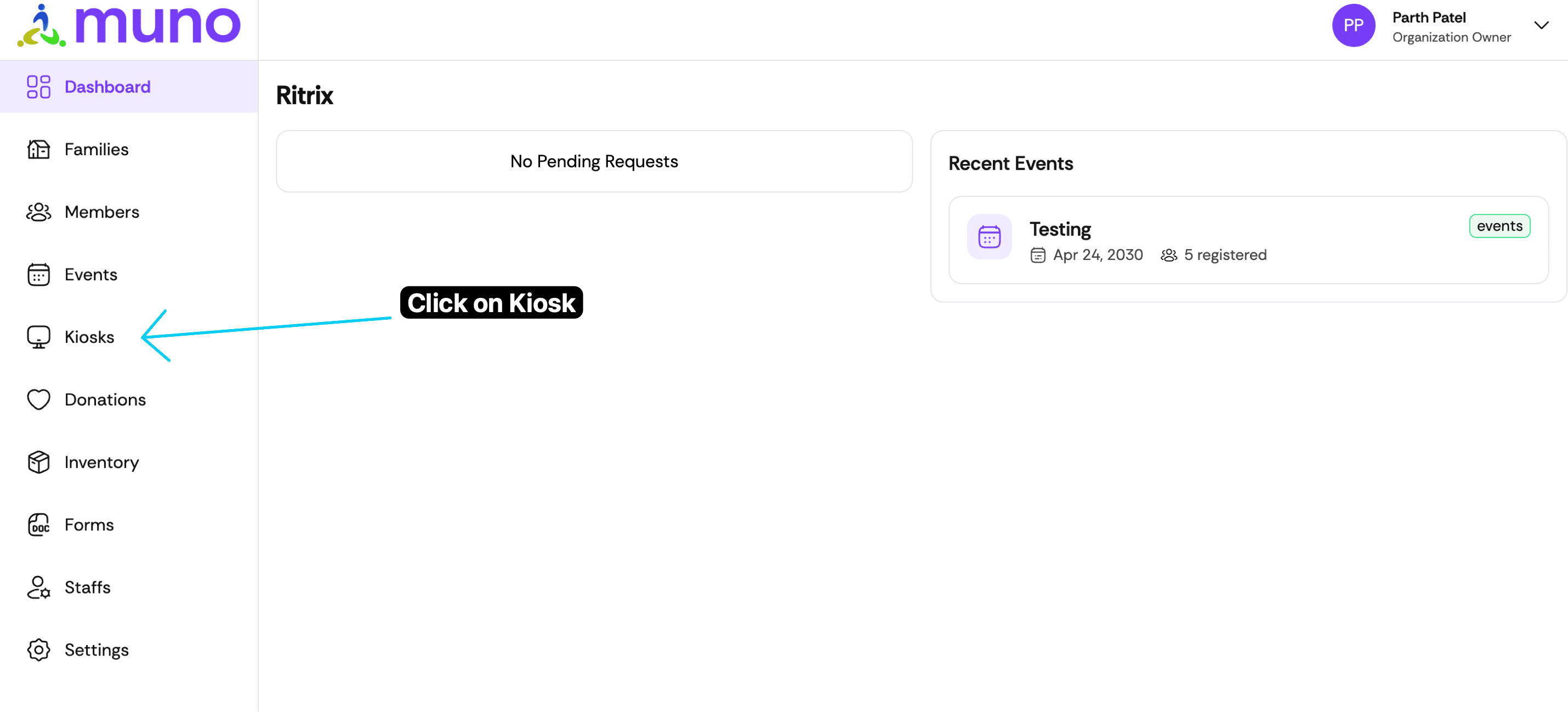
From the left-hand menu, click Kiosks.
Step 3: Select Your Kiosk
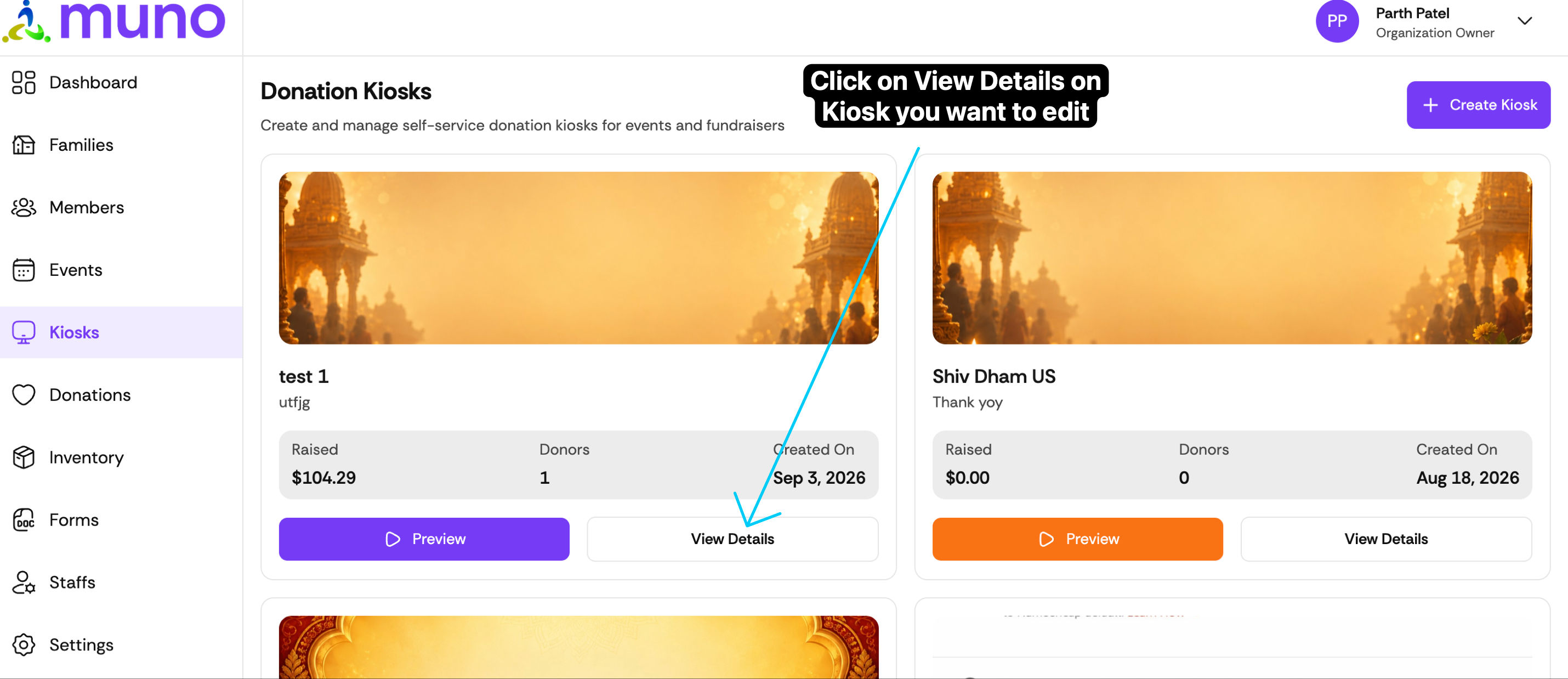
Locate the kiosk you want to update.
Click View Details to open its settings.
Step 4: Click Edit Kiosk
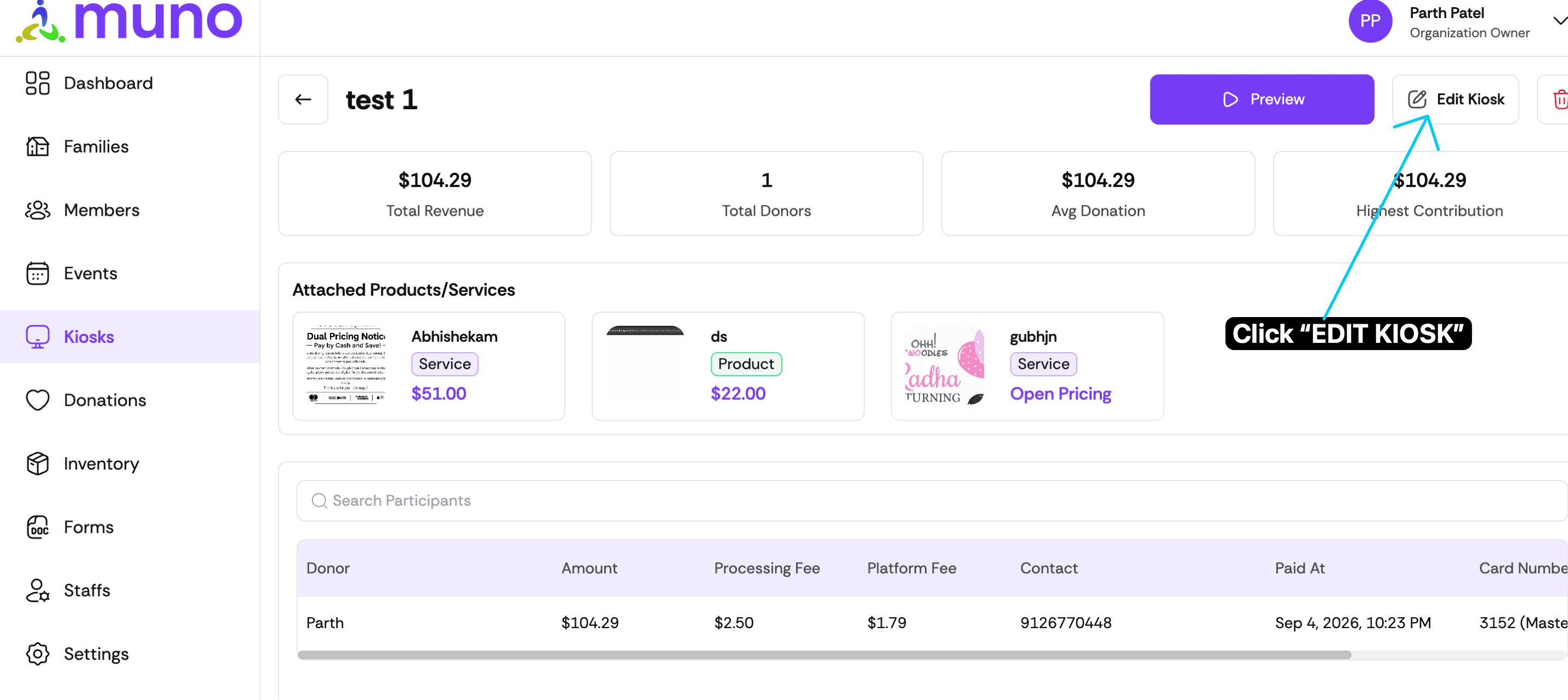
On the kiosk details page, click Edit Kiosk in the top-right corner.
Step 5: Enable or Disable Fees
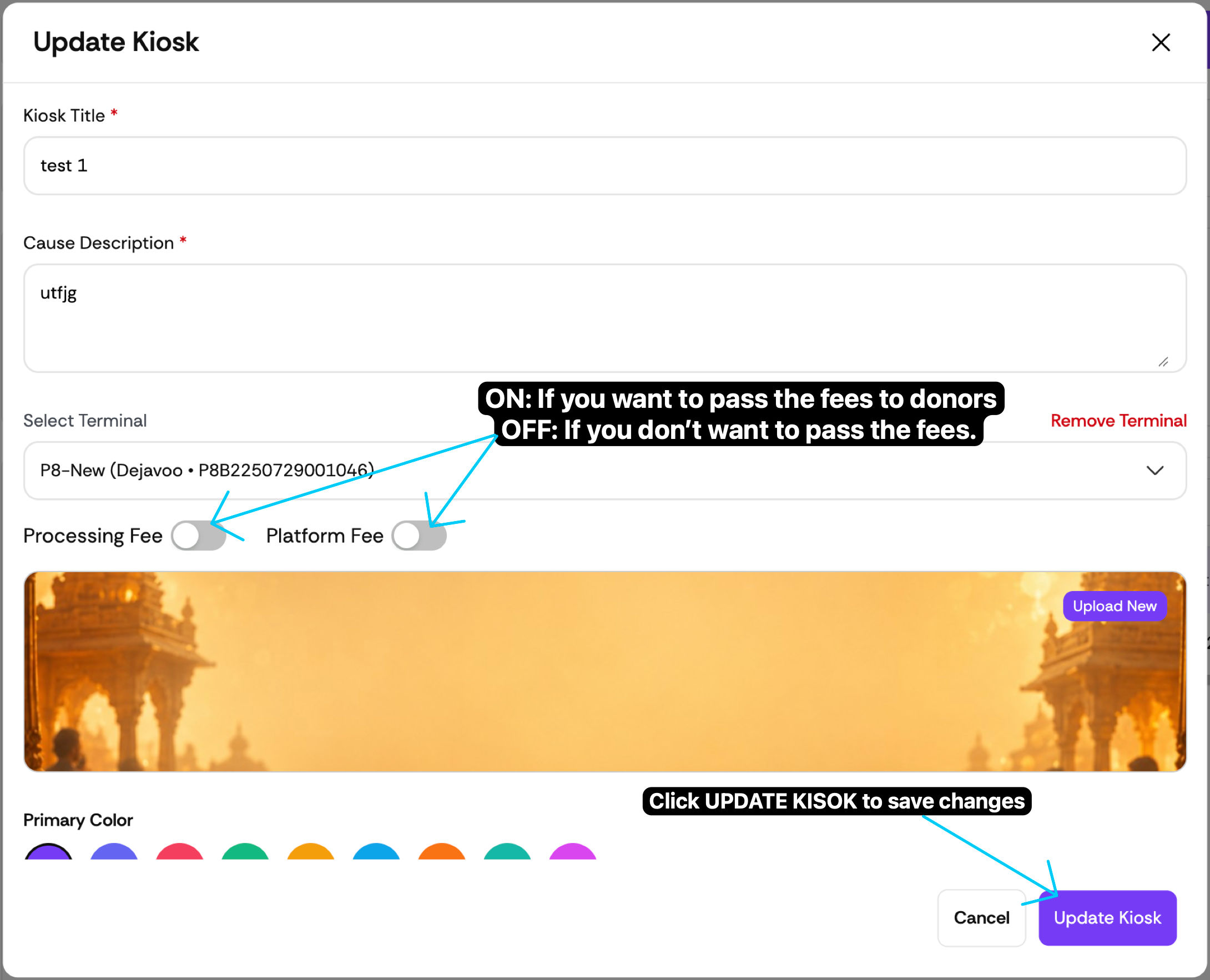
In the Update Kiosk window, locate the following settings:
Fee setting |
ON |
OFF |
|---|---|---|
Processing Fee |
Donors cover the processing fee |
Your organization covers the fee |
Platform Fee |
Donors cover the platform fee |
Your organization covers the fee |
You can turn each option on or off independently.
Step 6: Save Your Changes
After selecting your preferred settings, scroll to the bottom and click the purple Update Kiosk button.
Important
Your changes will only be saved after clicking Update Kiosk.
Once you update the kiosk please close the app on Ipad or Android Kiosk and relaunch the "muno" app.
Frequently Asked Questions
Can I enable processing fees but disable platform fees?
Yes. Each fee has its own setting, allowing you to control them independently.
How can I check my changes?
After saving, click Preview to review your kiosk's donor-facing experience.