
Category: Organization Settings
Estimated time: 2 minutes
Overview
Muno allows you to customize the name and email addresses displayed when your organization sends emails to members, donors, and customers.
You can update your sender name, sender email, and reply-to email directly from your organization settings.
Step 1: Log In to Muno
Log in to your Muno organization account.
Step 2: Navigate to Email Settings
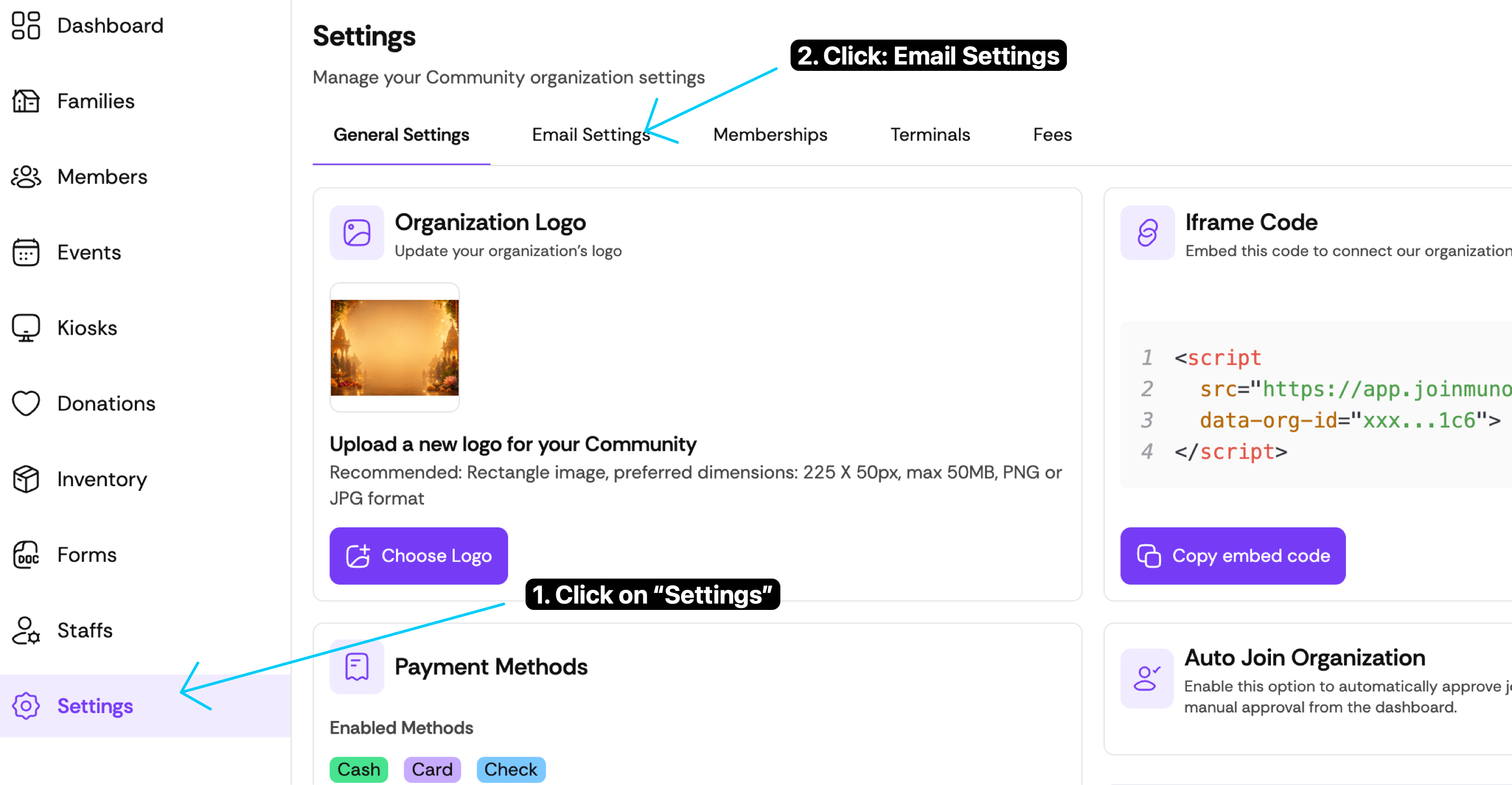
From the left-hand navigation menu, click Settings.
At the top of the Settings page, select Email Settings.
Muno Organization Settings and Email Settings tab
Step 3: Update Your Email Information
Under Email Settings, you'll find three fields you can customize.
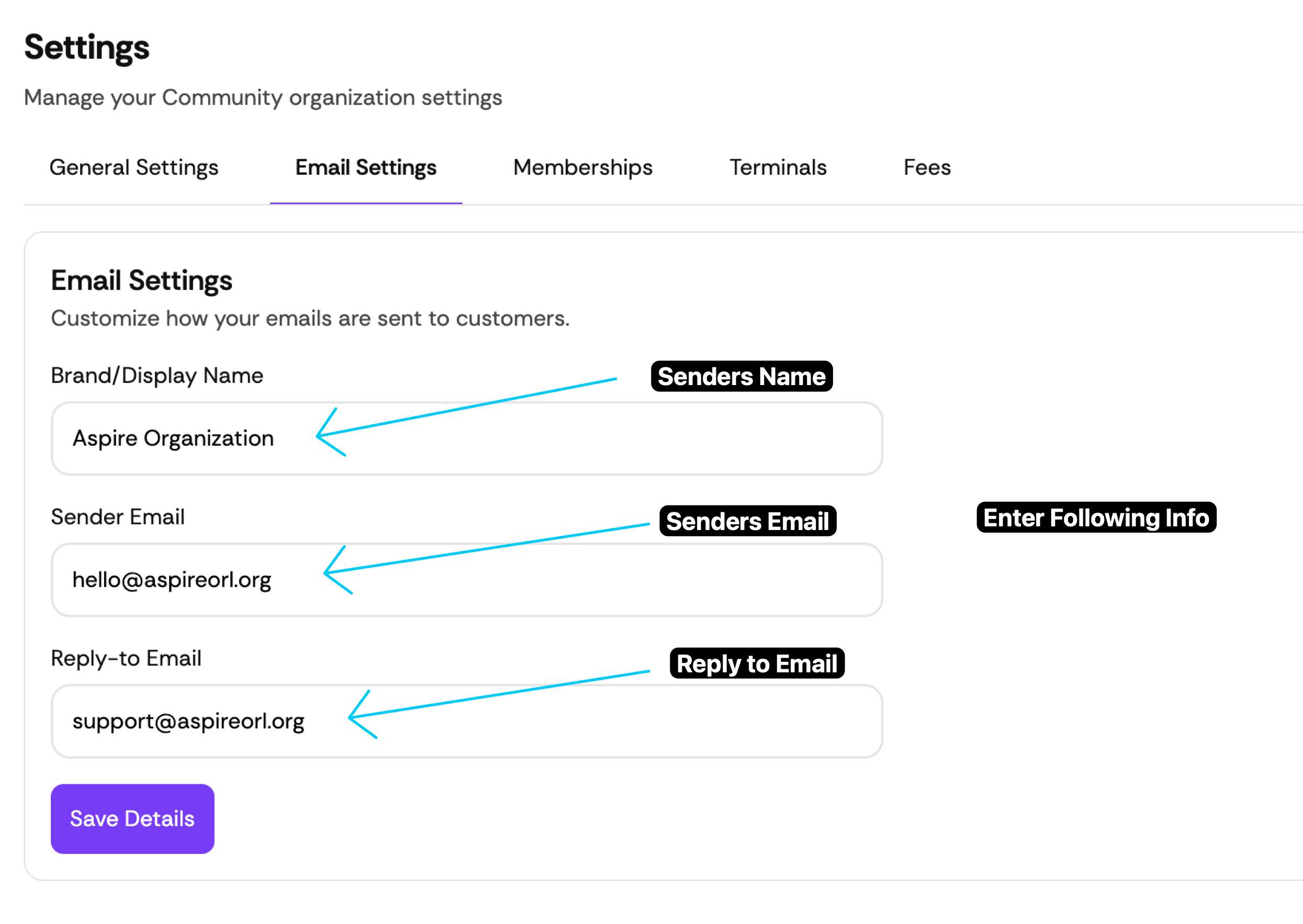
Muno White Label Email Settings
Field |
Description |
Example |
|---|---|---|
Brand/Display Name |
Name recipients see as the email sender |
Aspire Organization |
Sender Email |
Email address displayed as the sender |
hello@aspireorl.org |
Reply-to Email |
Email address where replies are directed |
support@aspireorl.org |
Enter your organization's preferred details in each field.
Step 4: Save Your Changes
Once you've updated the information:
Review the email details for accuracy.
Click the purple Save Details button.
Your updated email settings will be saved.
Helpful Tip
We recommend using a professional email address associated with your organization's domain, such as hello@yourorganization.org or support@yourorganization.org.
Frequently Asked Questions
1. Can I use different sender and reply-to email addresses?
-Yes! You can use one email address to send messages and another to receive replies.
2. Can I change my organization's display name?
- Yes. Update the Brand/Display Name field to change the name recipients see.
3. Will my changes automatically apply to future emails?
- The settings are saved when you click Save Details. We recommend sending a test email to verify that your updated sender information appears correctly.
4. What if my emails are not being delivered?
- Contact Muno Support to confirm whether additional email or domain verification is required.