
Category: Inventory
Estimated time: 3 minutes
Overview
Muno allows organizations to create and manage products and services that can be offered through online donation pages and donation kiosks.
You can add items with a fixed price or allow donors to choose their own contribution amount using open pricing.
Follow these steps to create a new inventory item.
Step 1: Log In to Muno
Log in to your Muno organization account.
Step 2: Navigate to Inventory
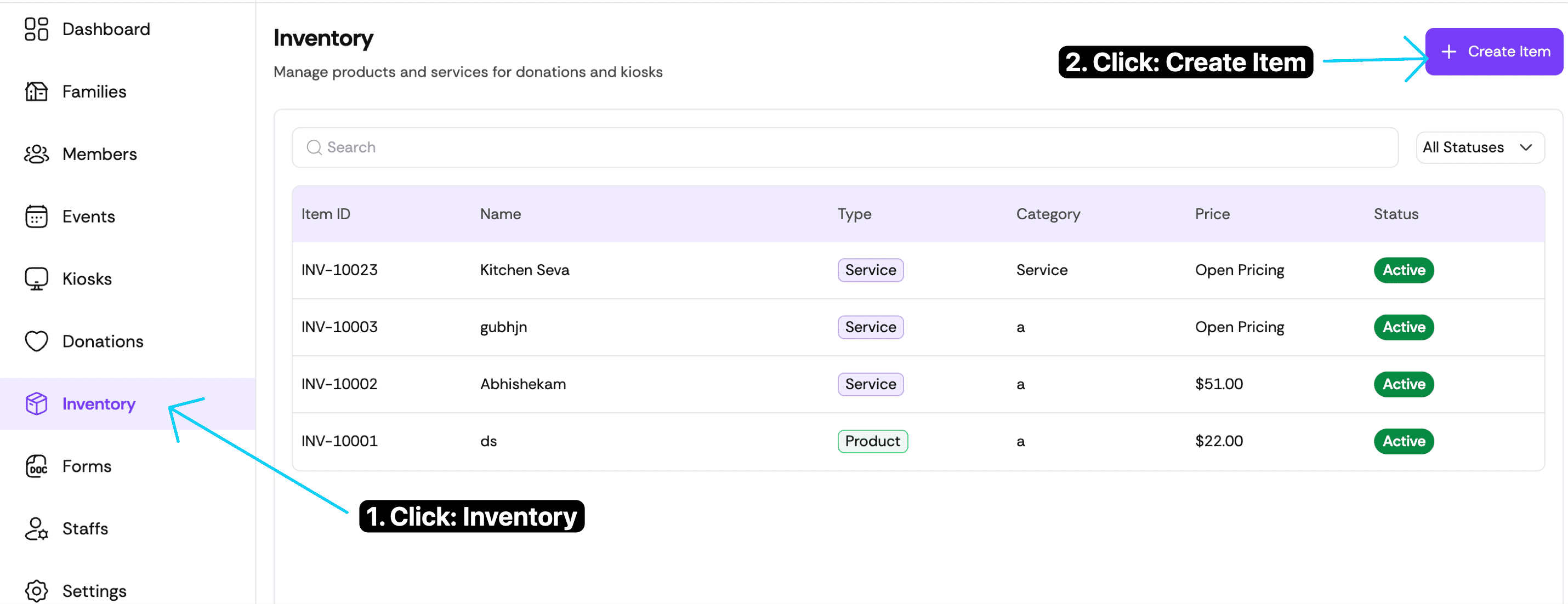
From the left-hand navigation menu, click Inventory.
On the Inventory page, click the purple + Create Item button in the upper-right corner.
Step 3: Enter Your Product or Service Information
The Create New Inventory form will appear.
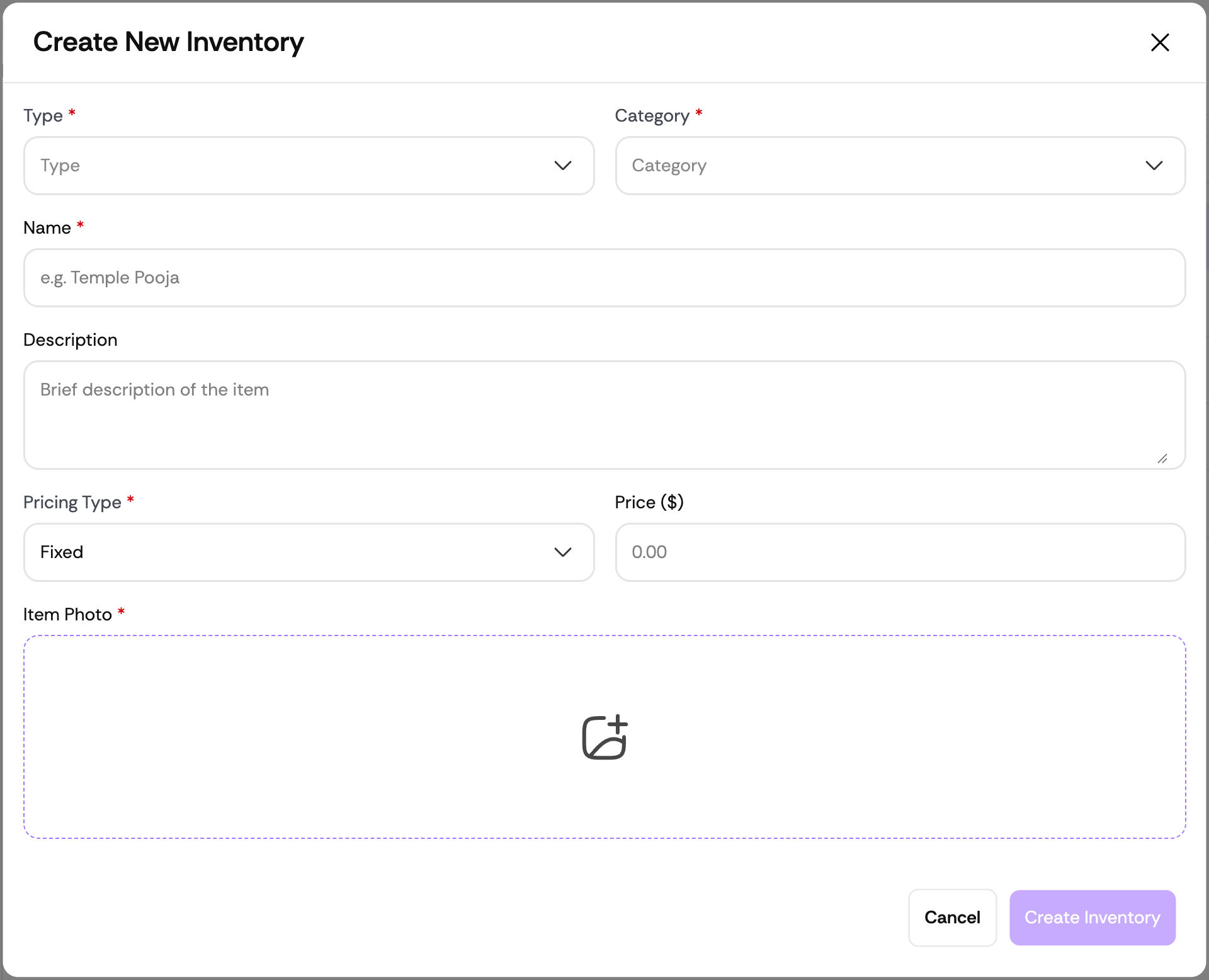
Complete the following fields:
1. Type — Required
Select whether your inventory item is a Product or Service.
Product: A physical or other item offered by your organization.
Service: An activity or service your organization provides.
2. Category — Required
Select an existing category from the dropdown menu.
To create a new category:
Click the Category field.
Type your new category name.
Select the option to create the new category when it appears.
3. Name — Required
Enter a clear name for your product or service.
Examples: Temple Pooja, Kitchen Seva, or Religious Books.
4. Description — Optional
Add a brief description explaining the product or service.
Although not required, we recommend adding a description so donors understand what they are contributing toward or purchasing.
Step 4: Choose Your Pricing Type
Muno offers two pricing options.
Fixed Pricing: Set a specific price for the product or service.
Example: A Temple Pooja service costs $20.00.
Donors pay the established item price.
Open Pricing: Allow donors to choose their own contribution amount.
Minimum: $0.01
Maximum: No predefined limit
Example: A donor can contribute $10, $51, $101, or another amount toward Kitchen Seva.
Step 5: Upload an Item Photo
Under Item Photo, upload an image representing your product or service.
This image can appear on your organization's online donation pages and kiosks.
Important
An item photo is required. We recommend choosing a clear, high-quality image that accurately represents your offering.
Step 6: Create Your Inventory Item
Once all required information is entered:
Review the product or service details.
Confirm the selected pricing type.
Click the purple Create Inventory button.
Your inventory item has been created!
Your new product or service will now be available in your Muno Inventory list.
Frequently Asked Questions
1. Can I create both products and services?
- Yes. Muno supports both types of inventory items.
2. Can donors enter their own amount?
- Yes. Select Open under Pricing Type to let donors choose their contribution amount, starting at $0.01.
3. Is a description mandatory?
- No. Descriptions are optional, but we highly recommend adding them.
4. Can I create my own inventory categories?
- Yes. Enter a new category name in the Category field and select the option to create it.
5. Is an item photo required?
- Yes. You must upload an image when creating an inventory item.